
If you are hosting a static website using Amazon S3 and CloudFront and want to access it using a custom subdomain managed by Cloudflare, this guide will help you set it up. Follow these steps to map your subdomain (e.g., myprofile.insertcart.com) to your CloudFront distribution.

Step 1: Configure CloudFront
- Log in to AWS Console
- Navigate to Amazon CloudFront.
- Select your CloudFront distribution (e.g.,
d2n8x7g5r7tpl1.cloudfront.net).
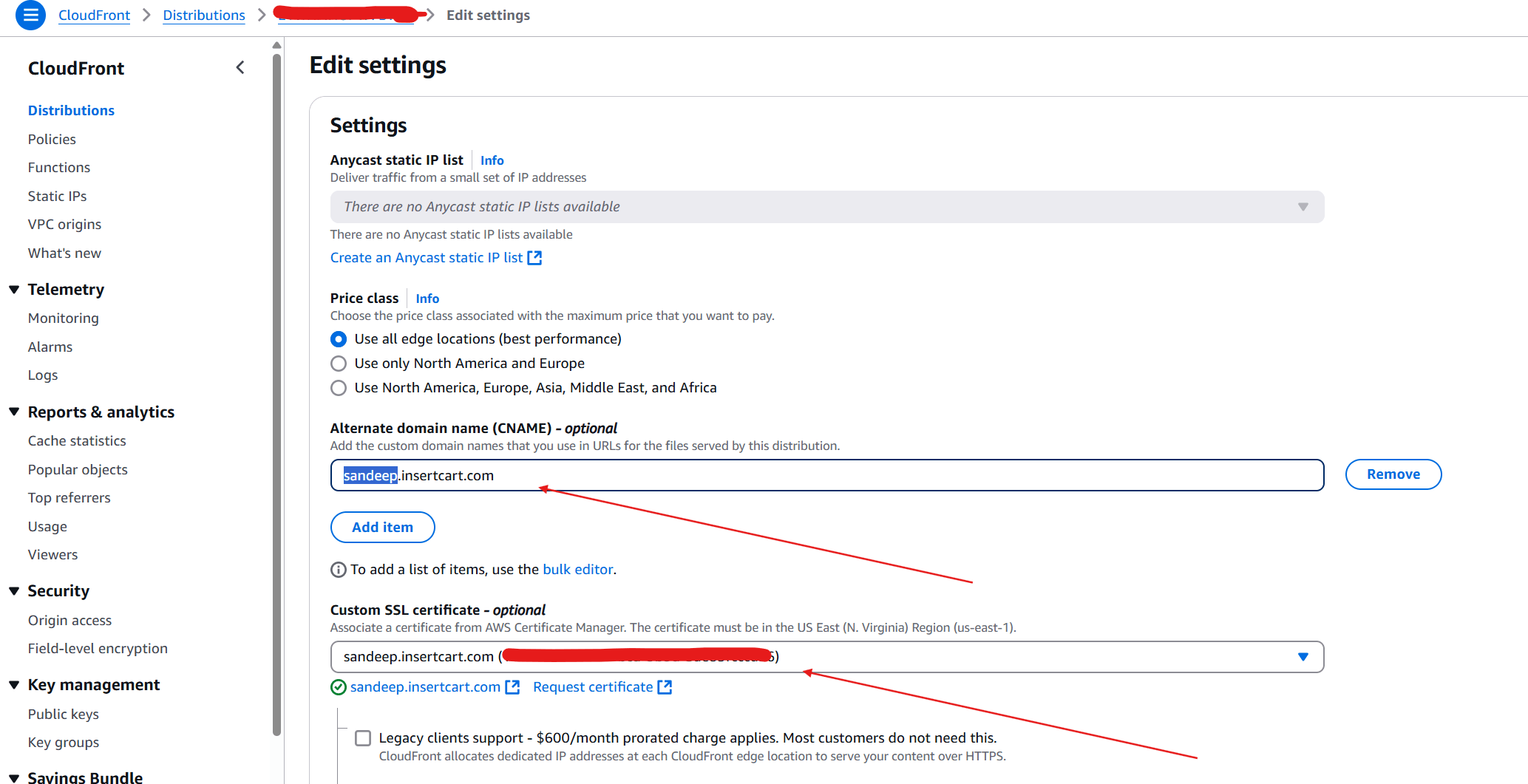
- Add Your Subdomain as an Alternate Domain (CNAME)
- Click on “Edit” in the General Settings.
- In the Alternate Domain Names (CNAMEs) section, add your subdomain:
myprofile.insertcart.com - Save the changes.
- Attach an SSL Certificate (Recommended for HTTPS)
- Navigate to AWS Certificate Manager (ACM).
- Request or import an SSL certificate for
sandeep.insertcart.com. - Validate the certificate via DNS or email.
- Once issued, return to CloudFront and attach the certificate.
- Save and Deploy Changes
- Click Save Changes in CloudFront.
- Wait for CloudFront to deploy the changes (this may take a few minutes).
Step 2: Configure Cloudflare DNS
- Log in to Cloudflare
- Go to the Cloudflare Dashboard and select your domain (
insertcart.com).
- Go to the Cloudflare Dashboard and select your domain (
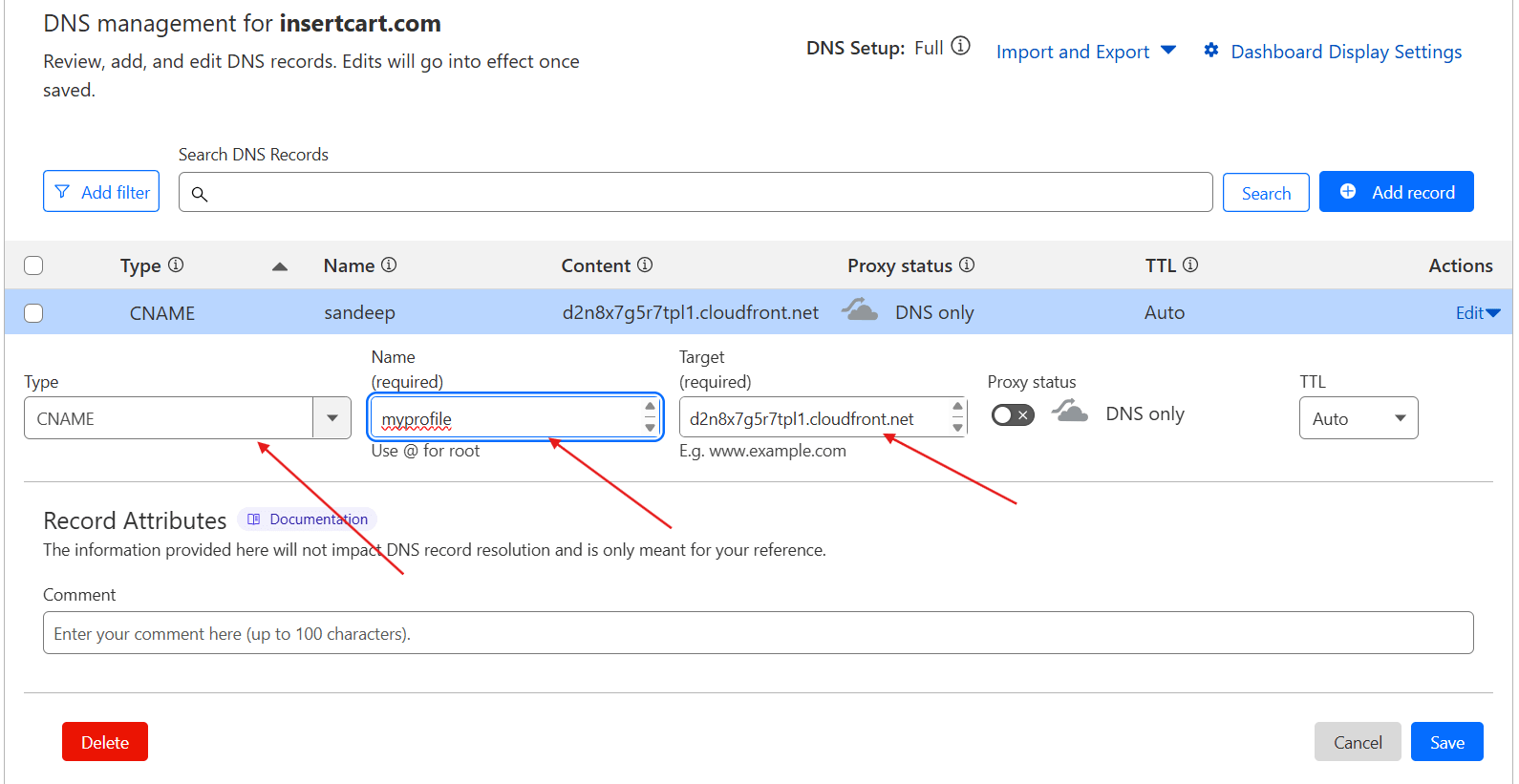
- Create a CNAME Record
- Navigate to the DNS section.
- Click Add Record.
- Select CNAME as the record type.
- Enter the following details:
Name:myprofileTarget: d2n8x7g5r7tpl1.cloudfront.net Proxy Status: DNS only (Disable Cloudflare Proxy) - Click Save.
- Wait for DNS Propagation
- It may take a few minutes to a few hours for DNS changes to take effect.
Step 3: Test the Setup
Once everything is configured:
- Open your browser and visit
https://.myprofile.insertcart.com - If the setup is correct, your CloudFront-hosted website should load successfully.
- If not, clear Cloudflare Cache and your browser cache, then try again.
Troubleshooting Tips
- If HTTPS is not working, ensure you have a valid SSL certificate attached to CloudFront.
- If the domain does not resolve, check your Cloudflare DNS settings and confirm that the CNAME record is properly set.
- For mixed content issues, update your website assets to load via HTTPS.
Conclusion
By following these steps, you have successfully mapped your CloudFront distribution to a Cloudflare-managed subdomain. This setup ensures better performance, scalability, and security for your static website.
If you found this guide helpful, stay tuned for more tutorials on AWS, Cloudflare, and website optimizations!








Leave a Reply